


Overview:
The article explains how to implement Row-Level Security (RLS) in Tableau to restrict data access based on a user’s role, department, or region. By using RLS, organizations can serve all users through a single dashboard while ensuring data privacy, reducing clutter, and avoiding the need to create multiple customized reports.
Key Approaches
-
Direct User Mapping: Connects user emails directly in the dataset using Tableau’s
USERNAME()function in a data source filter. -
Entitlement Table Join: Connects a separate user-to-permission mapping table when user details aren’t stored in the main dataset.
-
Server User Filters: Manually creates user-specific filter sets directly in Tableau Server when no mapping data is available.
Here is a Table of Contents tailored to the post’s structure:
Table of Contents
-
Introduction
-
The Need for Data Security in Dashboards
-
Why Row-Level Security (RLS) Matters
-
-
What is Row-Level Security (RLS)?
-
Core Benefits: Security, Relevance, and Efficiency
-
RLS in Action: An Example
-
-
Methods to Implement Row-Level Security in Tableau
-
Method 1: Email Connected Directly to the Database
-
Using Tableau’s
USERNAME()Function
-
-
Method 2: Separate Table Available for User Mapping
-
Connecting Entitlement Tables to Fact Data
-
-
Method 3: Creating User-Specific Groups/Filters in Tableau Server
-
Manual User Filter Mapping
-
-
-
Results & Key Takeaways
-
Benefits of Implementing RLS
-
Summary & Next Steps
-
-
Frequently Asked Questions (FAQs)
In many organizations, dashboards are shared across multiple teams, departments, or regions. While it’s useful to keep everything in one place, not every user would be interested in seeing all the information, rather interested in seeing data belongs to their department or region.
- A regional sales manager, for instance, would be keen on seeing sales for their own region.
- A team lead should see only their teammate’s performance, not the other teams.
Showing all data to everyone not only creates information overload but can also raise privacy and compliance concerns. That’s where Row-Level Security (RLS) comes in.
What is Row-Level Security?
Row-Level Security is a method of restricting data at the row level so that each user sees only the information/rows relevant to them. Instead of creating multiple dashboards for different audiences, one dashboard can serve all users—while dynamically tailoring the view to their access rights.
This makes dashboards:
- Secure – Users only see the data they’re meant to.
- Relevant – Each person gets insights tied to their role or region.
- Efficient – A single dashboard can serve many audiences without duplication.
Let’s understand through an example – We have a dashboard with Sales data for all states and regions. Now, we want to show the tailored data to each specific user. To achieve this, we applied RLS to the dashboard, and here are the results.
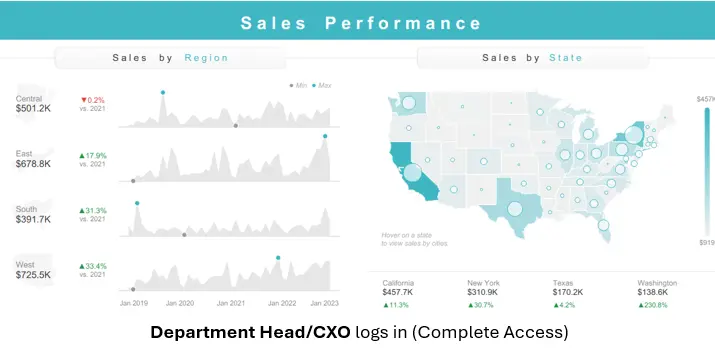
The pictures shows the dashboard when Regional Managers from different regions open it.
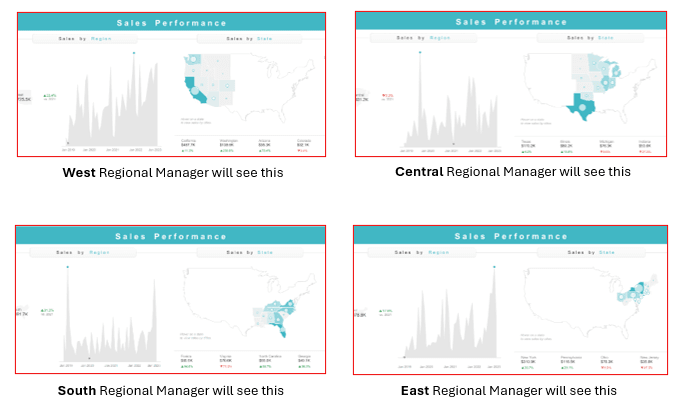
We are showing only the relevant data according to the user, as each Regional Manager will see only their region, and the Department Heads/CXOs will see the complete data.
So, let’s take a look at how we can achieve this by implementing row-level security.
Methods to Implement Row-Level-Security
So, to secure our dashboards, we choose our method according to the type of dataset distribution available with us.
- Email connected directly to the database – We can utilise Tableau’s ‘USERNAME()’ function to identify the user, map it to the username/email field in the dataset and filter the data accordingly
- A separate table for user mapping – If the username/email is not directly available in the dataset then create a table containing the email and their corresponding regions mapping, you can connect it to the main dataset and then use it for row-level-security.
- Creating a user-based filter in Tableau Server – In-case of no direct connection of the email available in the dataset, you can manually set user-specific filter on any field.
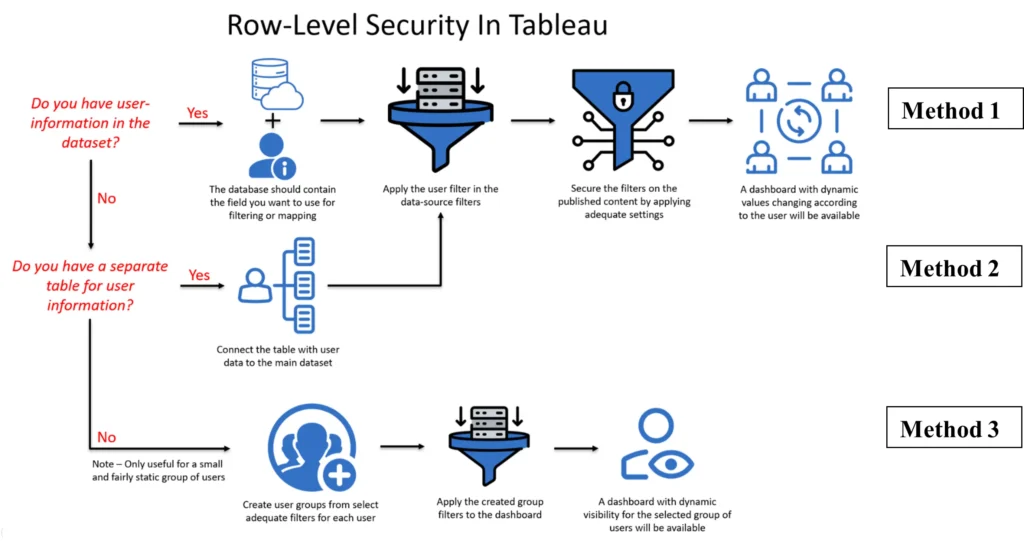
Let’s explore all of these methods, one by one.
Method 1: Email connected directly to the database
We utilised User-to-Data Mapping, to filter the data according to the signed in user.
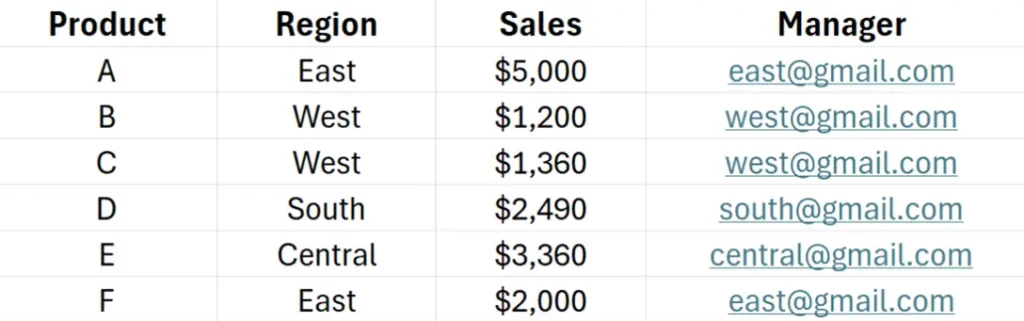
This can be used where we already have a security/user field mapped to the data, which will be used as a reference to filter the data in the dashboard. Here is a sample data for reference –
So, we leveraged a simple Tableau Server User Function to add a filter to the data source.
For example – We need to show data connected to the individual in the ‘Manager’ column of the dataset.
[Manager] = USERNAME()
(Table Field) = (Tableau Function that returns the Username)
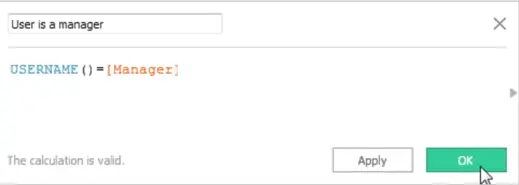
After creating the calculated field, just add it in the data source filters and set it to ‘TRUE’.
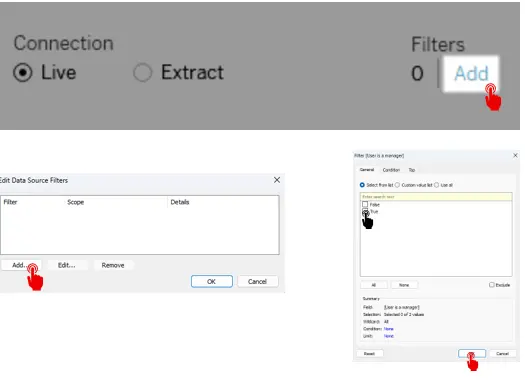
This would filter out everything else and each user will only see the rows they’re allowed to see, that is the data linked with their username.
Solution 2: A separate table is available for user mapping
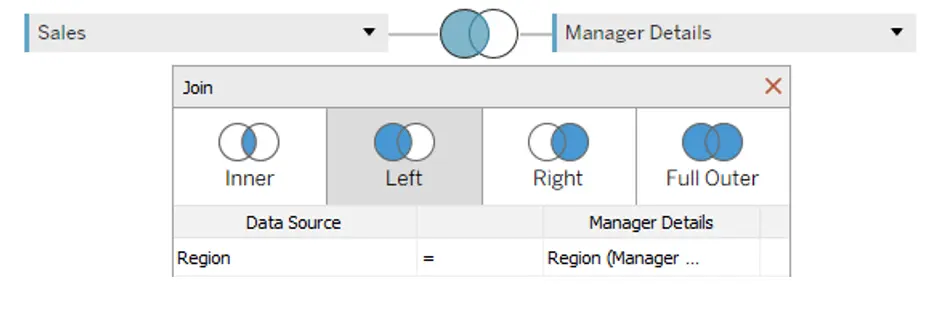
This is almost the same as Method 1 with the only difference being the email or username field is not present in the main dataset but as a separate table with a common column to the main dataset that can be used to connect it.
So just by adding a precursor step of connecting the mapping table to the main dataset, and then following the same steps as mentioned above, we can implement row-level security
For example, if your data looks something like this –
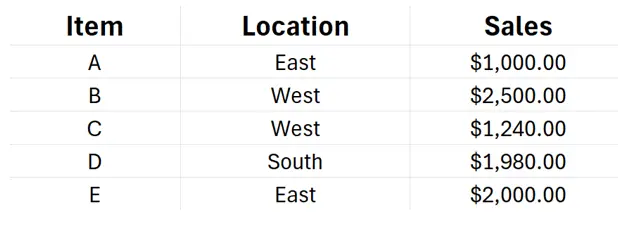
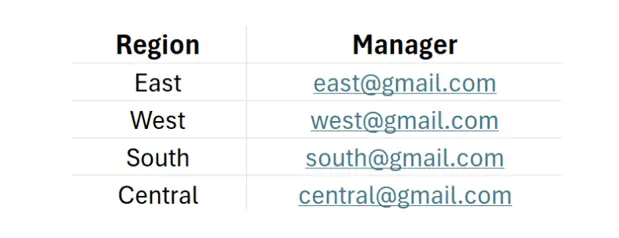
Then, you can join them in Tableau ‘Data Source’ page and follow the same line of steps as Method 1.
Solution 3: Creating a user-specific group
When there is no kind of data available regarding the users/emails in the dataset, then this method can be used as an alternative. Here we can select different users and choose the data that they would be able to see in the dashboard.
This procedure is best for a small and fairly static set of users or groups, and only a small number of workbooks that need user filters.
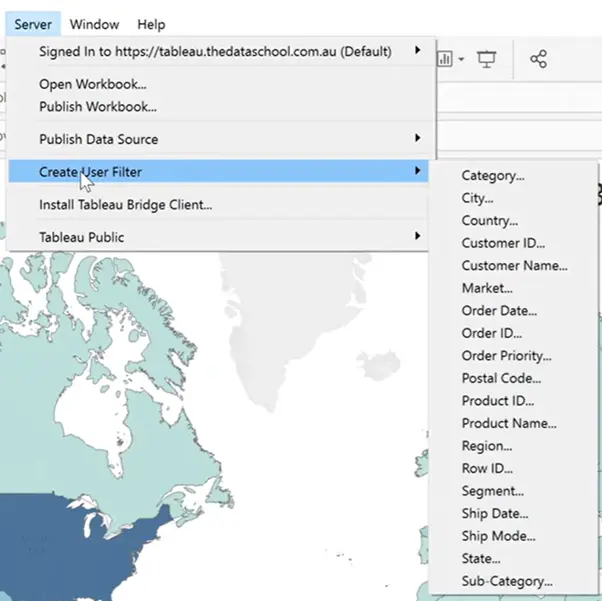
Select Server > Create User Filter. Then select the field you want to use for filtering the view, such as Region. Then you might be prompted to sign in to your server/site.
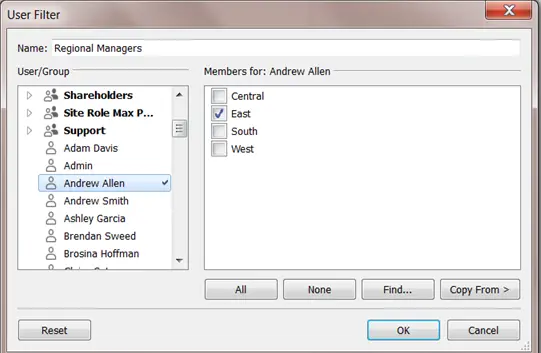
Select a user or group on the left, then indicate which values on the right they should be able to see. Repeat this process for each user or group and click OK when you’re done mapping users to values.
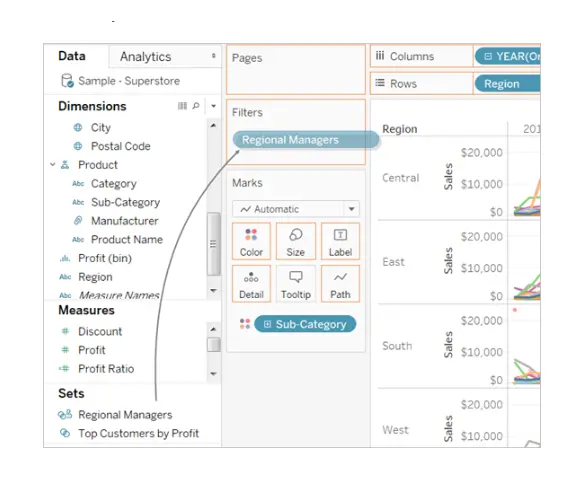
After you create the user filter, it appears in the Sets area of the Data pane. Drag the user filter to the Filters shelf. The filter becomes a context filter, and the view adjusts to show data that you are allowed to see.
Results: Seamless Security
By using any of the three given methods, depending on the use-case and environment, you can achieve the following benefits
- Only authorized data shown
- Maintained performance across all views
- Scalable and reusable security model (For solutions 1 and 2)
- Reduced risk of data leaks
Building dashboards for diverse users or regions?
Then apply Row-Level Security in Tableau to ensure each user sees only the data relevant to them—delivering both security and clarity in an efficient manner using a single dashboard.
When implementing RLS at scale, teams often collaborate with Tableau Consultants to ensure secure, governed, and maintainable dashboards.
Each month, we curate the latest updates, insights, and trends for senior leaders in data analytics and AI in our CXO Analytics Newsletter.
Our mission is “to enable businesses to unlock value in data.” For over 20 years, we’ve partnered with more than 100 clients—from Fortune 500 companies to mid-sized firms—to solve complex data analytics challenges. Our services include Advanced Analytics Consulting, Generative AI Consulting, and Business Intelligence (Tableau Consultants, Power BI Consultants and Looker Consultants) turning data into strategic insight. We would love to talk to you. Do reach out to us for a free consultation.
FAQs
-
What is the difference between Row-Level Security (RLS) and Object-Level Security in Tableau?
-
Answer: Row-Level Security restricts access to specific rows (records) within a dataset based on the user’s identity or role (e.g., a regional manager seeing only their region’s sales). Object-Level Security (or permissions at the server/dashboard level), on the other hand, controls access to entire workbooks, sheets, projects, or data sources.
-
-
How does using
USERNAME()orFULLNAME()work for dynamic Row-Level Security?-
Answer: Tableau provides built-in user functions like
USERNAME(),USERDOMAIN(), andFULLNAME(). By creating a calculated field comparing these functions to a user or email field in your data source (e.g.,[Manager Email] = USERNAME()), Tableau dynamically filters the rows returned based on who is logged into Tableau Server or Tableau Cloud.
-
-
What is the best way to handle Row-Level Security if user names are not included in the main data source?
-
Answer: You can create an explicit security/entitlement mapping table that links user identities (like email addresses or usernames) to business attributes (like Region or Department ID). Joining or relationships-mapping this table with your main facts dataset allows you to apply
USERNAME()dynamic security filters without altering the main database schema.
-
-
Does applying Row-Level Security impact dashboard performance?
-
Answer: It can, depending on the implementation. Dynamic security joins (especially many-to-many security tables) or complex calculated security filters can add overhead during query execution. To maintain performance, ensure security fields are indexed in live databases or optimize extracts by keeping entitlements clean and simple.
-
-
How can I test Row-Level Security in Tableau Desktop before publishing to Tableau Server/Cloud?
-
Answer: In Tableau Desktop, you can use the “Filter as User” feature located at the bottom right corner of your workspace canvas. This allows you to select any published Tableau user or group to instantly preview and verify how the visual layout and data filters update for that specific persona.
-